
 Thomas GUFFROY
e15c2e3c91
additional info added to doc
Thomas GUFFROY
e15c2e3c91
additional info added to doc
|
1 year ago | |
|---|---|---|
| JUCE | 1 year ago | |
| Processing | 1 year ago | |
| SC | 1 year ago | |
| documentation | 1 year ago | |
| .gitignore | 1 year ago | |
| README.md | 1 year ago |
README.md
Chill Music Low Stress
This application is a synthesizer with embedded effects that can be controlled using any Apple device with the application iDraw OSC.
This project is part of the course of Computer Music: Languages and Systems from Politecnico di Milano and has been developped by Farnoosh Afshinrad, Alper Arslan, Luigi Biasi, Alinda Gerçek and Thomas Guffroy.
Introduction: Concept
Usually, the only way to interact with a synthesizer is to use a keyboard to trigger sound, and knobs and faders to modify the parameters. With this project, we propose another way to interact with the synthesizer, by using a tactile mobile device such as a phone, or even better, a tablet. Using any mobile Apple device with the application iDraw OSC, the users have two possible ways to interact with the synthesizer:
- drawing in the drawing area;
- choosing the tool (especially the pens) and the color to draw with.
The goal is not to draw anything but rather to use the drawing tools to control specific parameters of the synth, and thus modify either the sound synthesis or the effects.
The drawing area is represented in the following figure, with the 2 parameters describing the position of the pen (X coordinate and Y coordinate) and the pressure applied to the screen. Note that if the users are drawing with the finger instead of the pen, the pressure is not taken into account.
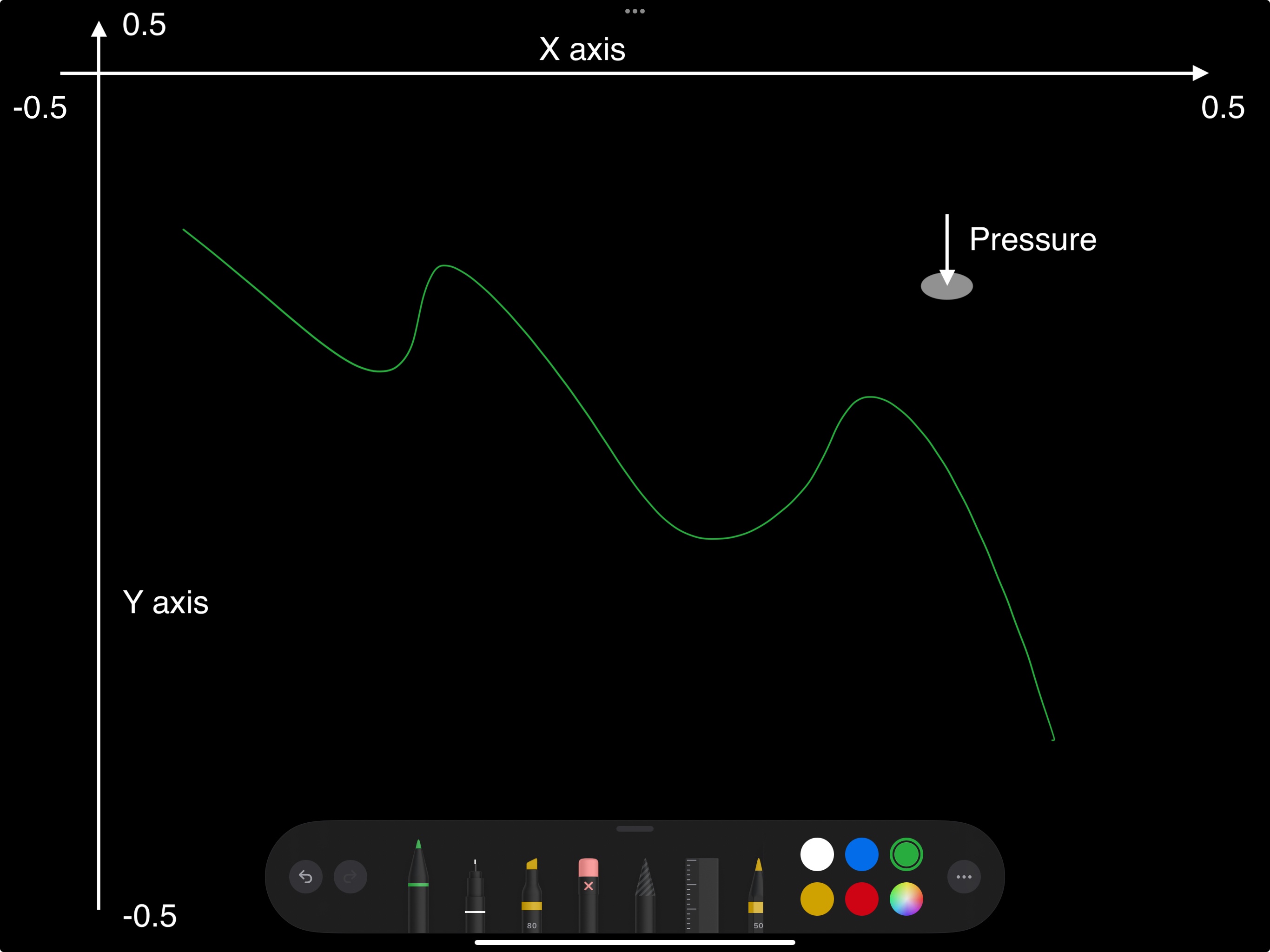
The different tools available and the sound parameters they control are represented in the following figure.

In the following sections we will describe in detail all the parameters that can be controlled by the users using the drawing application. In particular, we will talk about:
- Sound synthesis: how to control the sound timbre using colors;
- Envelopes: how to control one or many envelopes using different pens;
- Effects: how to apply and control the effects by drawing.
1) Interaction with iDraw OSC
iDraw OSC is an application that is able to send OSC messages through the network to a target, depending on what the users draw on the device (color, type of pen, x and y location of the pen, etc...). The user is asked to insert the IP address of the machine hosting SuperCollider, as well as the port number, which is 57120 (the default port for OSC messages in SuperCollider). Using these OSC messages, we can control the parameters of our synth. The diagram below shows briefly what should be the network setup to make the application and synthesizer work together.

Since iDraw OSC is only used for sound modification, users must use an external MIDI keyboard to actually trigger the synthesizer and the envelopes. The tests were made using the Arturia KeyLab Essential 49.
2) Sound synthesis
a. Sound generation
The timbre of a sound is often referred to as its color. Using this analogy, users can modify the timbre of the synth by changing the color of the pen. The color is defined by its three RGB components (red, green, blue). Let's use R, G and B to control three different waveforms, which are the three main components of our sound.
| Color | Soundwave |
|---|---|
| Red | Sinusoid |
| Green | Sawtooth |
| Blue | Square |
The output sound is the mix between the three waveforms, with volumes corresponding to the intensity of the color component associated. For example, for a smoother sound, one might prefer using shades of red whereas for more agressive sounds, one might prefer green or blue.
b. Envelopes
Users have acces to three different envelopes, each one controlling a different element of the synth, as described in the following table. The control of the envelopes can be done by selecting the appropriate pen.
| Envelope name | Description | Pen type |
|---|---|---|
| Amp. Env. | Modulates the amplitude of the sound | Pen |
| Filt. Env. | Modulates the cutoff frequency of the LP filter | Monoline |
| Pitch. Env. | Modulates the pitch of the oscillators | Marker |
The envelopes used are ADSR envelopes, but depending on the envelope, users are able to modify only a combination of the parameters (amond Attack, Decay, Sustain, Release). The following tables explain for each one of the envelopes how the pad controls are mapped to the ADSR parameters.
- Amplitude Envelope
| Pad parameter | Envelope parameter | Envelope parameter range |
|---|---|---|
| X axis | Release | [0; 10] seconds |
| Y axis | Attack | [0; 5] seconds |
- Filter Envelope
| Pad parameter | Envelope parameter | Envelope parameter range |
|---|---|---|
| X axis | Decay | [0; 10] seconds |
| X axis | Release | [0; 10] seconds |
| Y axis | Attack | [0; 5] seconds |
| Pen opacity | Envelope depth | [0; 50] |
- Pitch Envelope
| Pad parameter | Envelope parameter | Envelope parameter range |
|---|---|---|
| X axis | Decay | [0; 10] seconds |
| X axis | Release | [0; 10] seconds |
| Y axis | Attack | [0; 5] seconds |
| Pen opacity | Pitch ratio | [1; 10] |
c. Diagram of the sound synthesis part
The synthesizer also embeds a LFO and a resonant low pass filter. The diagram below shows briefly how the different elements of the synthesizer are connected together. The tablet symbols indicated that the parameter can be controlled by the user using the tablet (see section below for more information).

4) Effects
a. JUCE VST3 Plugin
The effects are handled by a VST3 application developped using JUCE. This application is then loaded as a plugin in SuperCollider, and takes as input 2 channels. The 2 output channels are then sent to the master output of SuperCollider, so the users can hear the sound processed by the JUCE application. The sound generated by SuperCollider is conveyed to the JUCE plugin in a specific SuperCollider stereo bus.
Important note: the SuperCollider plugin VSTPlugin should be added to the Extension folder of SuperCollider, otherwise SuperCollider is natively unable to load a VST3 plugin.
The application developped in JUCE provides 5 different effects:
- Distortion;
- Reverb;
- Chorus;
- EQ;
- Delay.
The following UML diagram shows how the JUCE plugin was implemented.

b. Effects control using the tablet
In the following, in addition of these 5 effects, we will also consider the LFO and filter from SuperCollider as being effects, because they are controlled exactly the same way using the tablet.
Let's synthesize in the following table all the possible parameters that can be modified for each one of the effects:
| Effect | Parameters | Description |
|---|---|---|
| LFO | LFO Rate | Frequency of the LFO (e.g. 0.01Hz to 20Hz) |
| LFO Waveform | Waveform for the LFO | |
| LFO Target | Target of the LFO | |
| Low Pass Filter | Cutoff frequency | Cutoff frequency |
| Resonance | Q factor of the filter | |
| LFO Depth | Controls the amount of modulation applied to the filter cutoff | |
| Envelope Depth | Controls how much should the filter envelope modulate the cutoff | |
| Distortion | Drive | Shape of the distortion (soft, hard...) |
| Dry/wet | Controls the mix between dry and wet signal | |
| Reverb | Room size | How long should the reverb go |
| Dry/wet | Controls the mix between dry and wet signal | |
| Chorus | Amount | Frequency and depth of the chorus |
| Dry/wet | Controls the mix between dry and wet signal | |
| EQ | Low Gain | Gain of the low shelf (< 200 Hz) |
| High Gain | Gain of the high shelf (> 5000 Hz) | |
| Delay | Amount | Controls the amount of delay we want to apply |
| Dry/wet | Controls the mix between dry and wet signal |
A creative and fun interaction design is to create custom presets consisting of a combination of effects that can be modified simultaneously using the pen. Each preset can be selected using a different type of pen, thus offering 4 possibilities of presets (3 out of the 7 pen types are already used for the envelopes). The following sections describe a possible set of presets that can be good-sounding and fun for the users.
Preset 1 - Pencil
This effect preset uses the LFO, the filter and the reverb as follows. The parameter ranges are given as examples but may be adjusted a posteriori.
| Pad parameter | Effect parameter | Parameter range |
|---|---|---|
| X axis | Filter cutoff | [20; 18000] Hz |
| X axis | LFO Rate | [0; 15] Hz |
| Y axis | Filter resonance | [0; 1] |
| Y axis | Reverb room size | [0; 1] |
| Pen pressure | Filter LFO depth | [0; 4] |
When this preset is selected, the following parameters are set and remain the same (they are not changed in any way by the pen):
| Effect parameter | Value |
|---|---|
| LFO Waveform | Decreasing sawtooth |
| LFO Target | Filter cutoff |
Preset 2 - Crayon
This effect preset uses the LFO, the filter, the reverb and the delay as follows. The parameter ranges are given as examples but may be adjusted a posteriori.
| Pad parameter | Effect parameter | Parameter range |
|---|---|---|
| X axis | LFO Rate | [15; 1] Hz |
| X axis | Filter LFO depth | [0; 3] |
| X axis | Delay amount | [0; 1] |
| Y axis | Filter cutoff | [20; 18000] Hz |
| Y axis | Reverb dry/wet | [0; 1] |
| Pen pressure | Filter resonance | [0; 1] |
When this preset is selected, the following parameters are set and remain the same (they are not changed in any way by the pen):
| Effect parameter | Value |
|---|---|
| LFO Waveform | Square |
| LFO Target | Filter cutoff |
Preset 3 - Fountain Pen
TBD
Preset 4 - Water Color
TBD
5) Graphical User Interface
The Graphical User Interface (GUI) has been developed using Processing. To ensure the ineraction between SuperCollider et Processing, OSC messages are sent through the loopback network interface of the computer, using the port 57122. (WIP)